Anarix MCP
Connect Claude to your Anarix advertising and marketplace data. Ask natural-language questions and get instant performance insights.
What is Anarix MCP?
Anarix MCP is a Model Context Protocol (MCP) server that connects Claude with your Anarix account. It lets you query advertising and marketplace data conversationally — simply describe what you want to know and Anarix MCP fetches the relevant data, runs analysis, and returns results directly inside Claude.
Anarix MCP is built for real operational analysis. It connects to live account data, not a static dataset — so every response reflects current performance.
Choose Your AI Tool
Anarix MCP works with any MCP-compatible AI agent. Pick the client you use and follow the setup steps below.
Installation & Setup
Setting up Anarix MCP takes about 2 minutes. You can do this from the Claude app or directly in the Claude website using Custom Connectors.
Before members can configure custom connectors, an Owner or Primary Owner must:
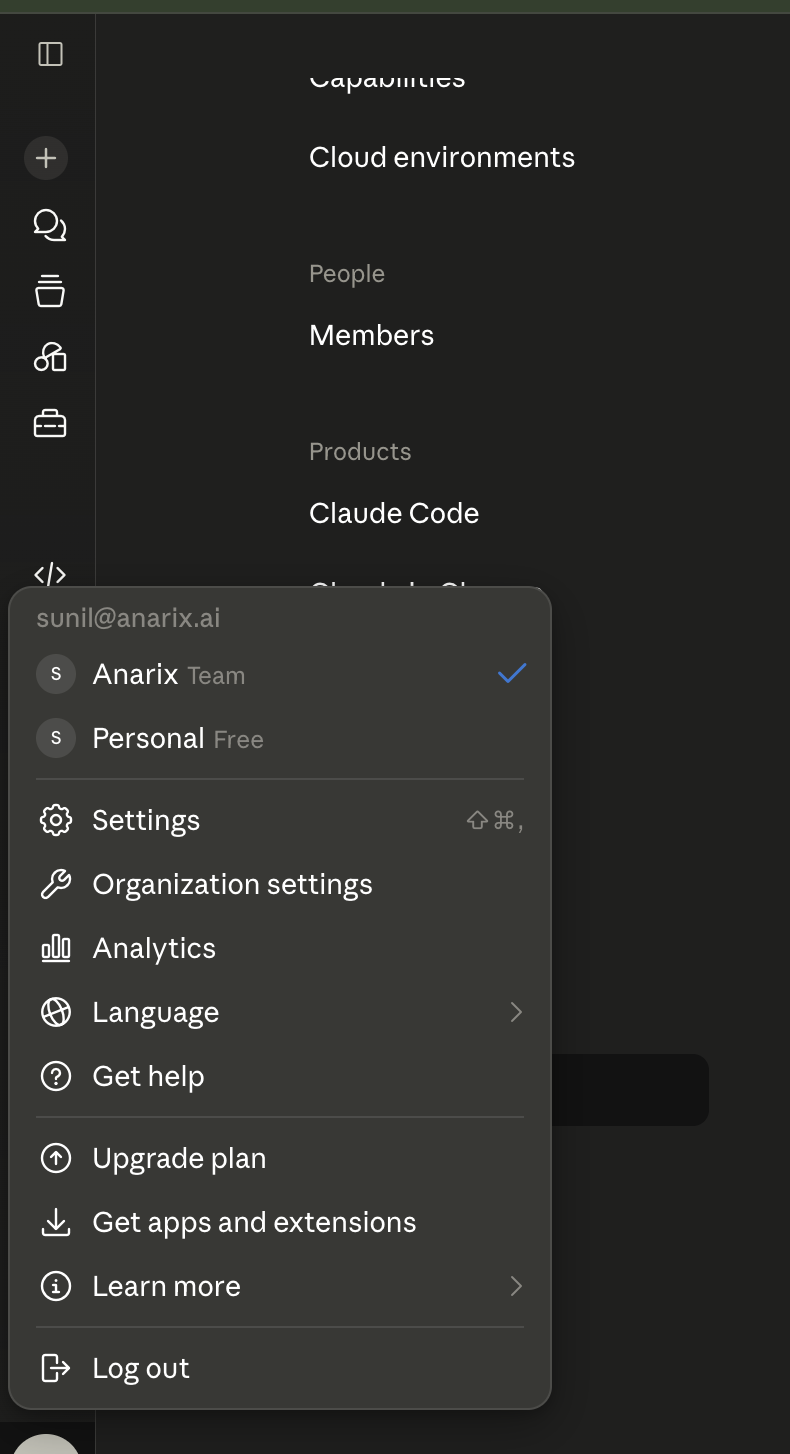
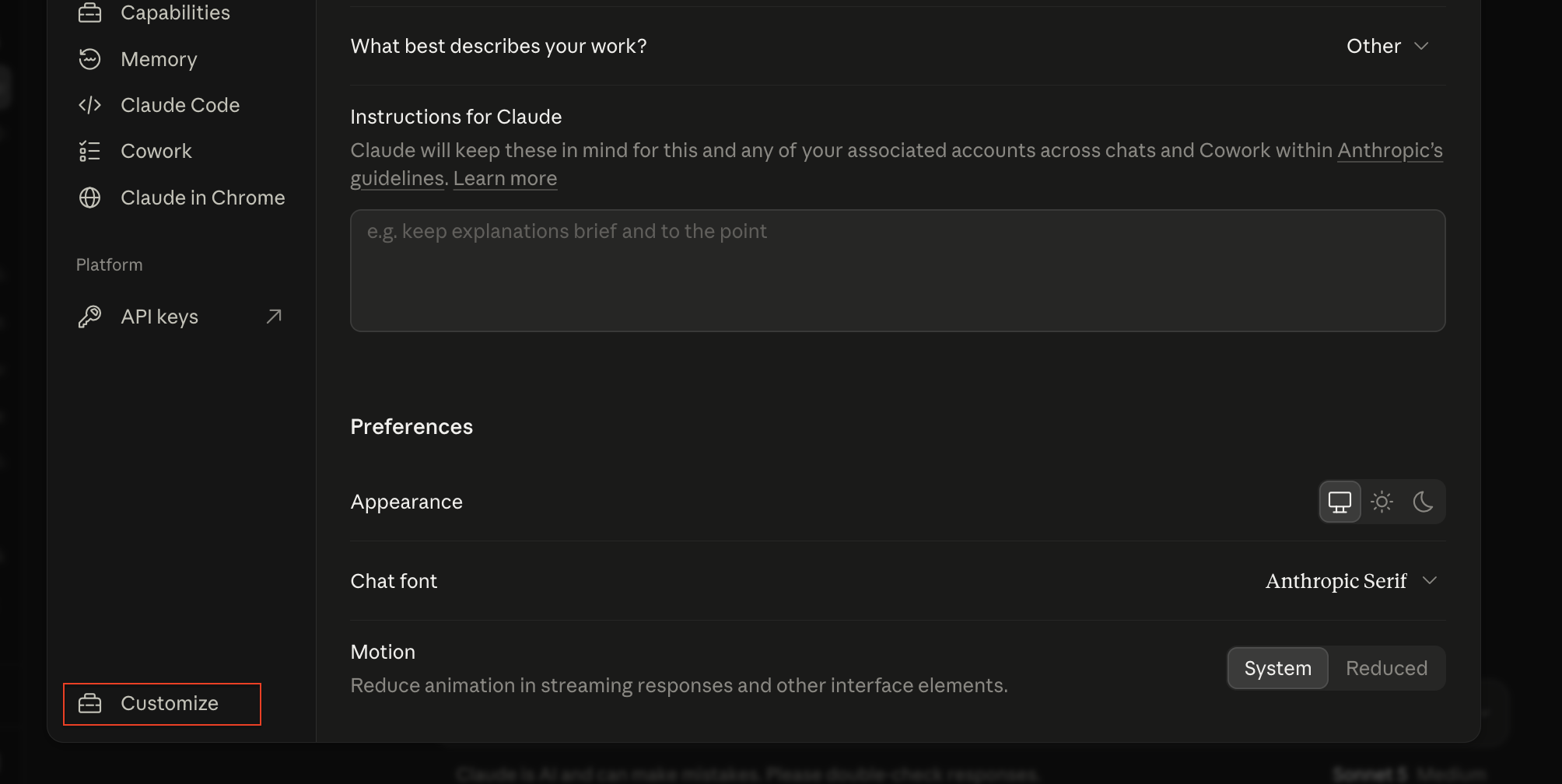
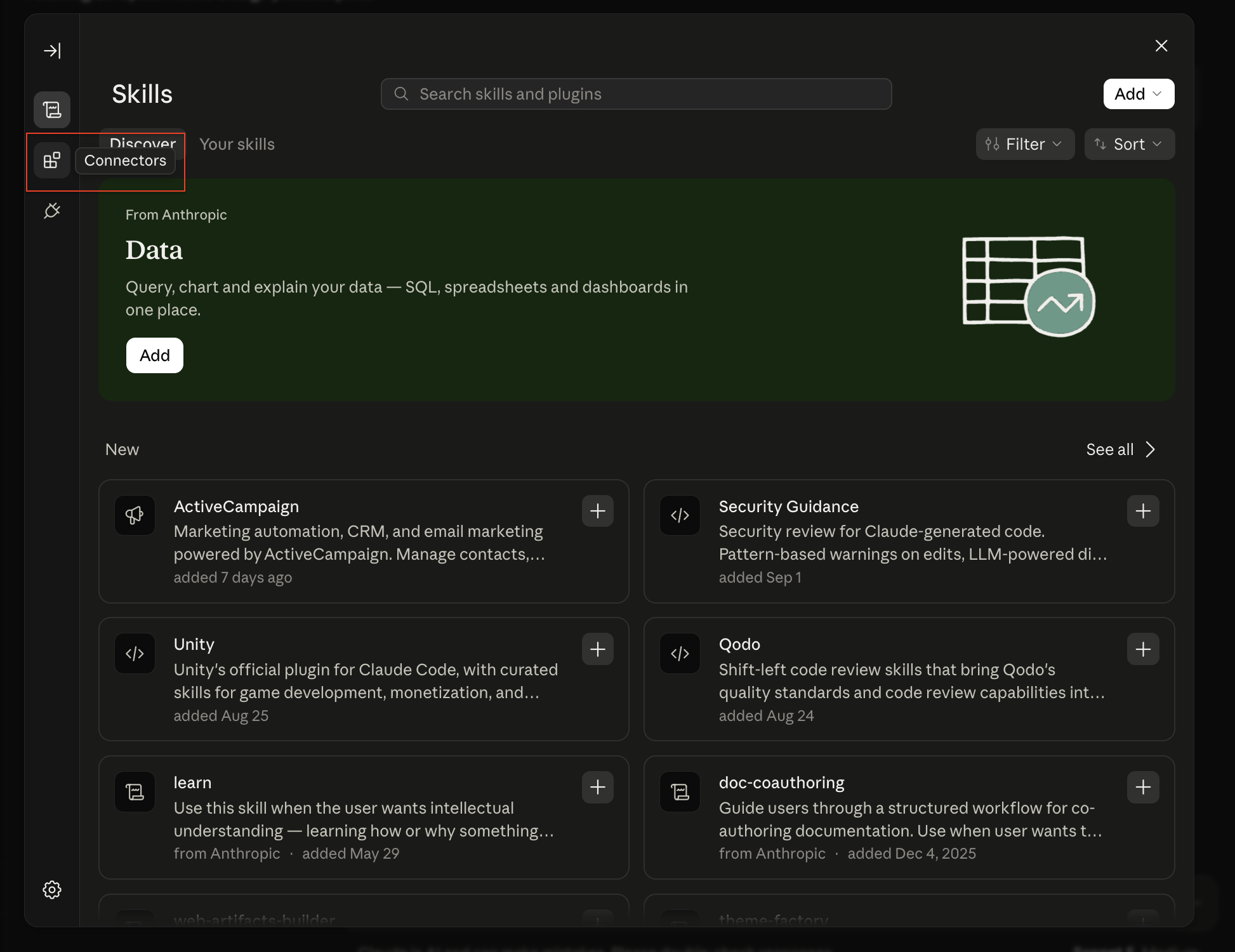
- In Claude, go to Settings > Customize > Connectors.
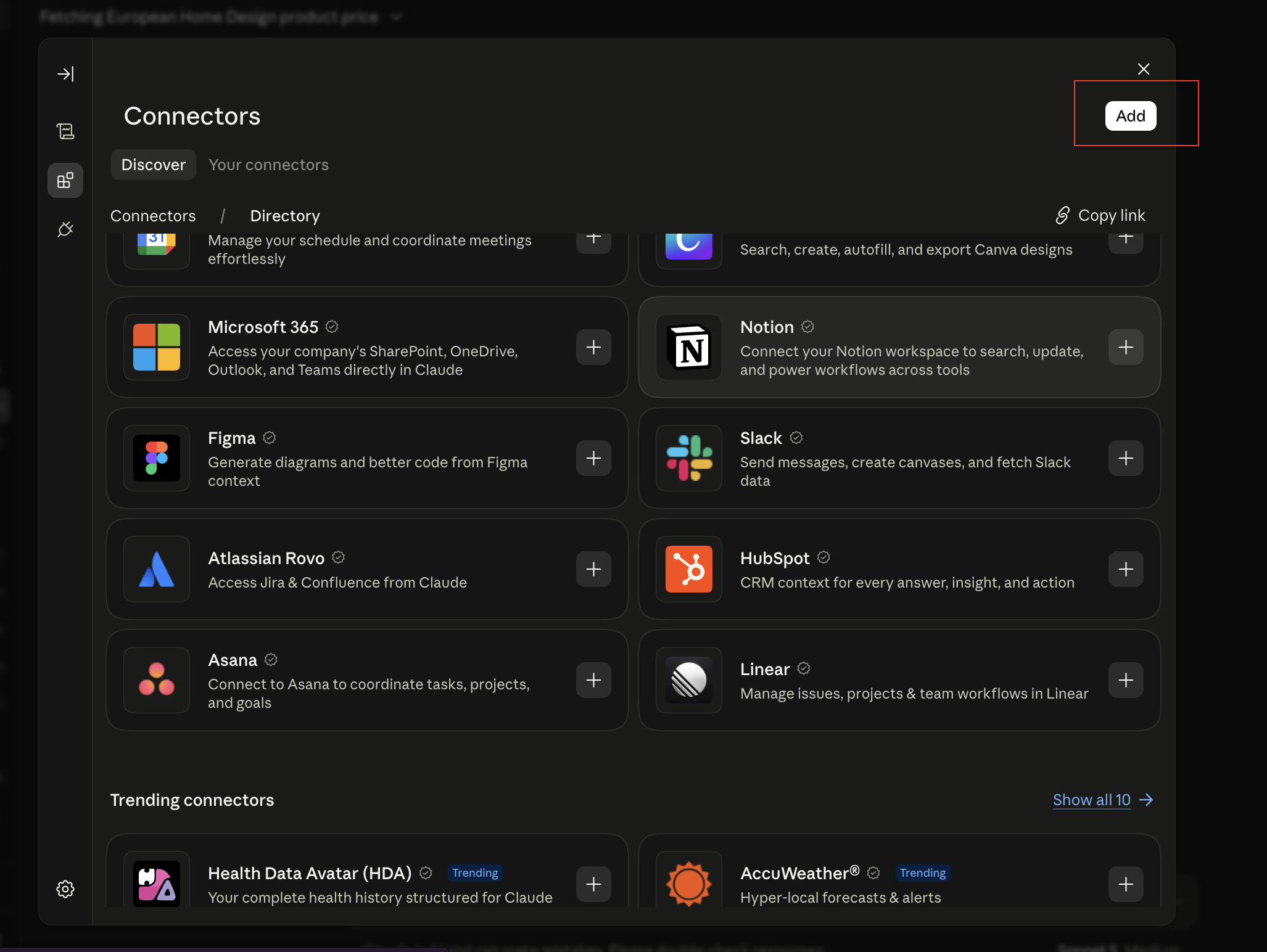
- Click Add, then select Add Custom Connector.
- Enter the following details:
- Name: JIVA
- Remote MCP URL:
https://mcp.anarix.ai/mcp
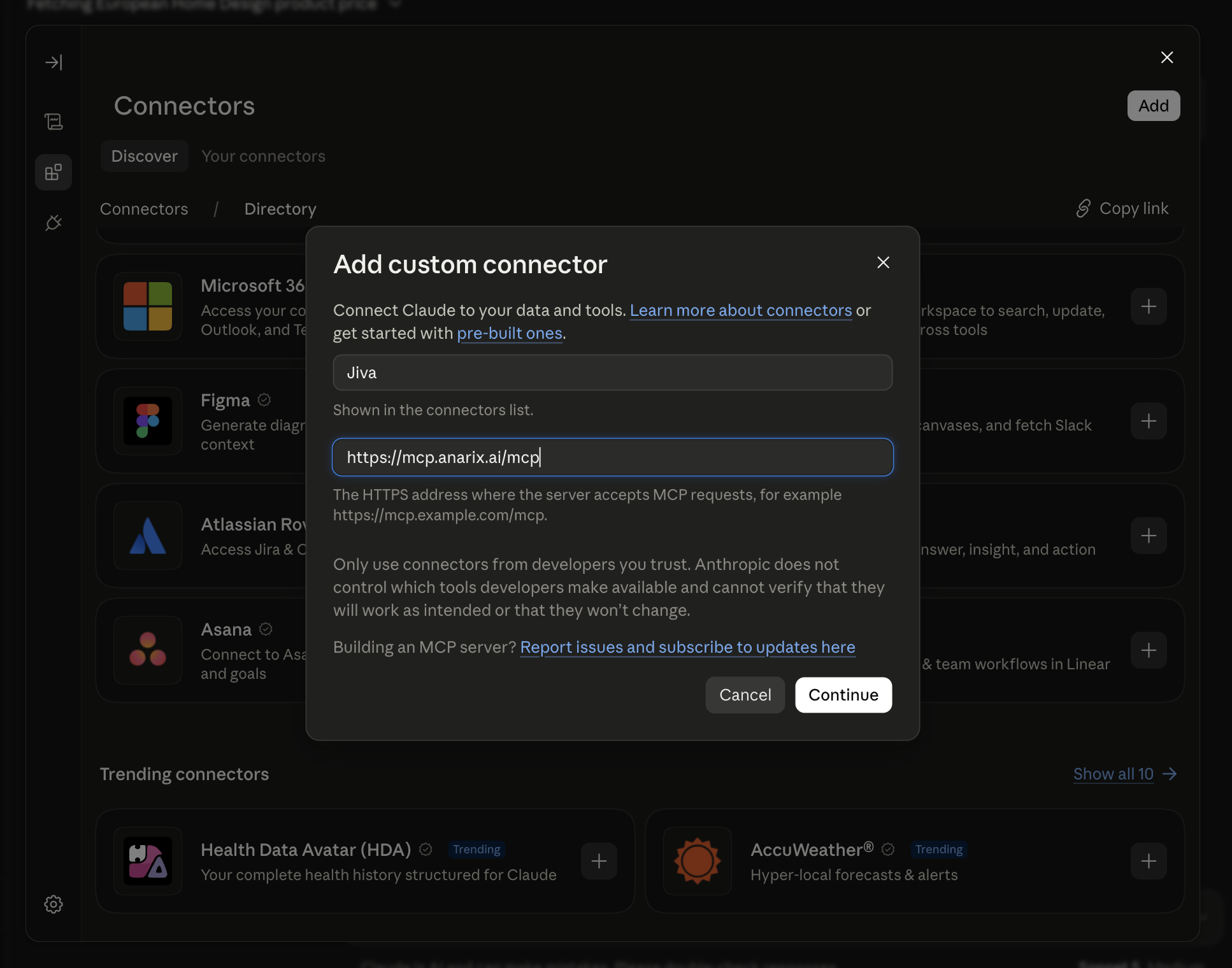
- Click Continue, then click Add.
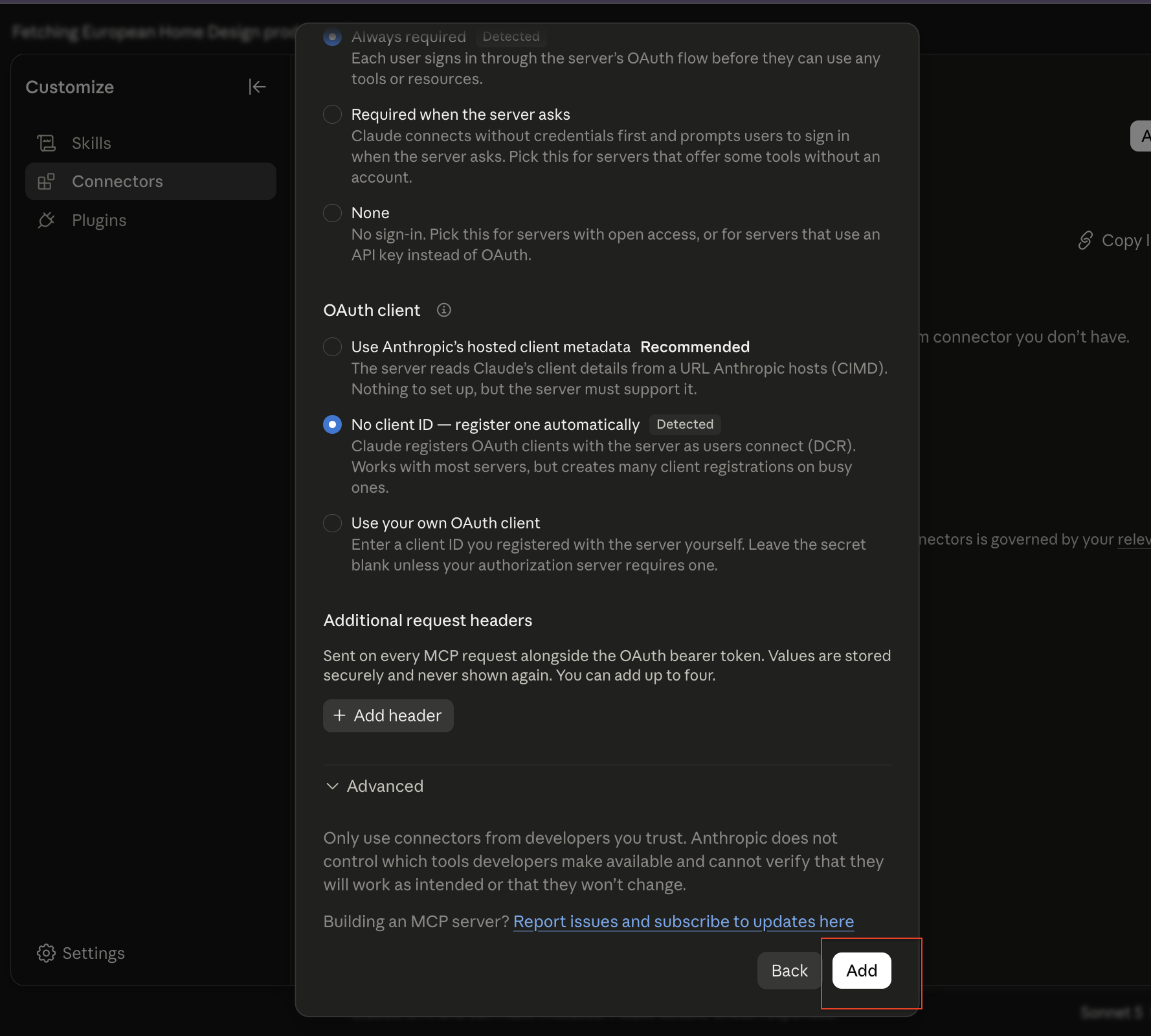
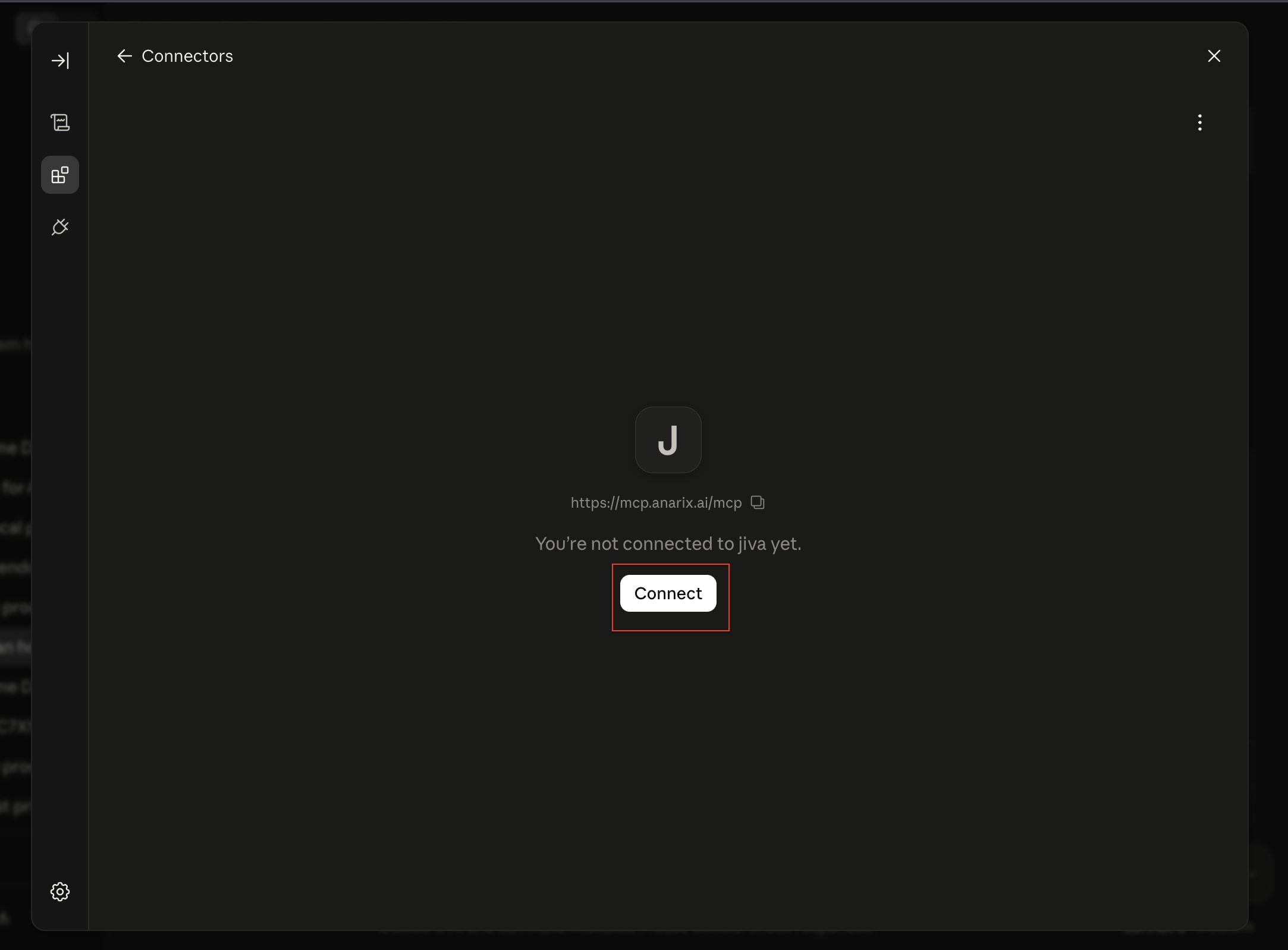
- Claude will show a Connect option. Click Connect to continue. You'll be redirected to the Anarix login page.
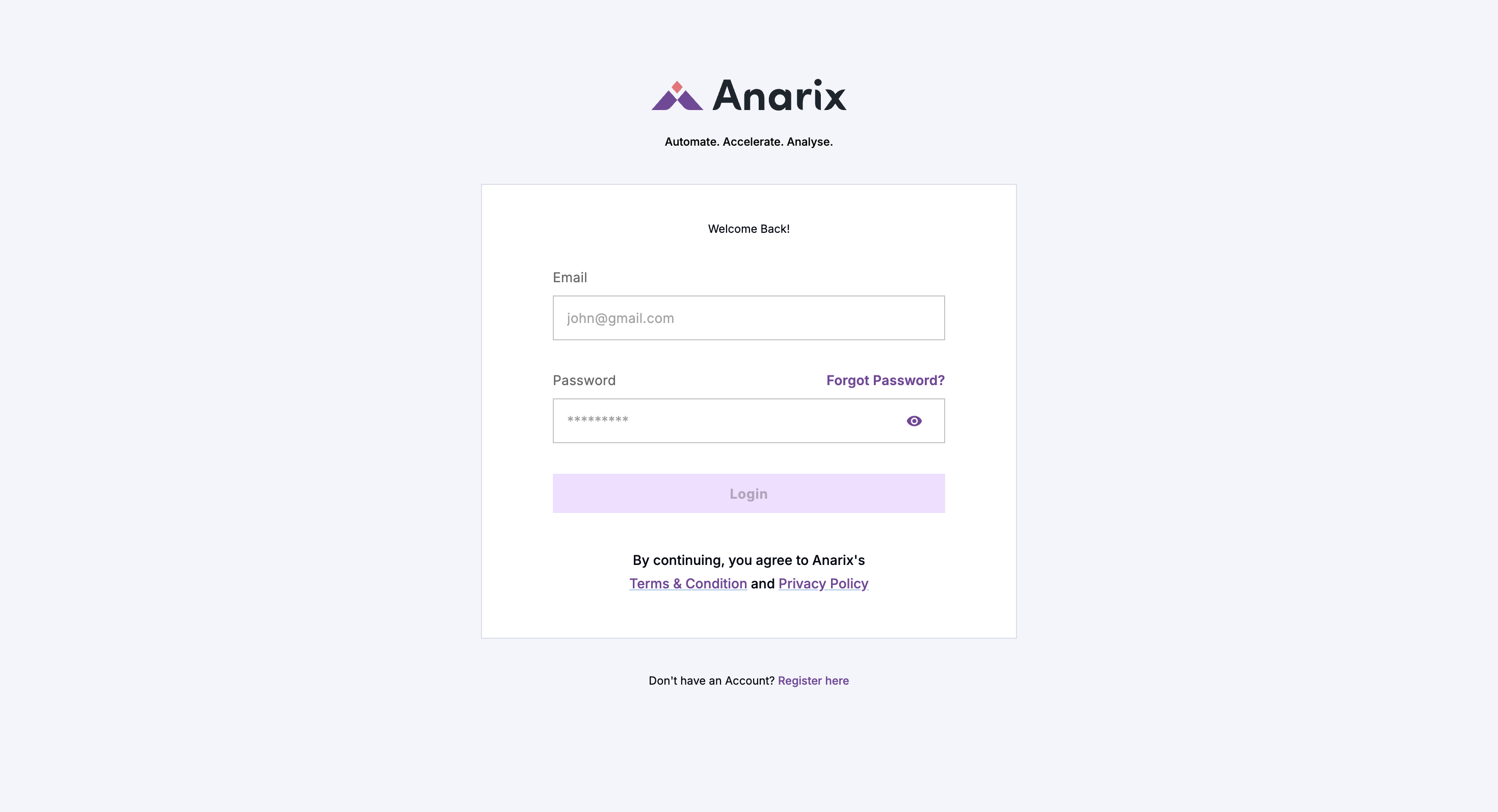
- Sign in with your Anarix credentials, then wait for Claude to redirect you back.
- Once redirected back to Claude, open a new chat and confirm that the JIVA tools are available.
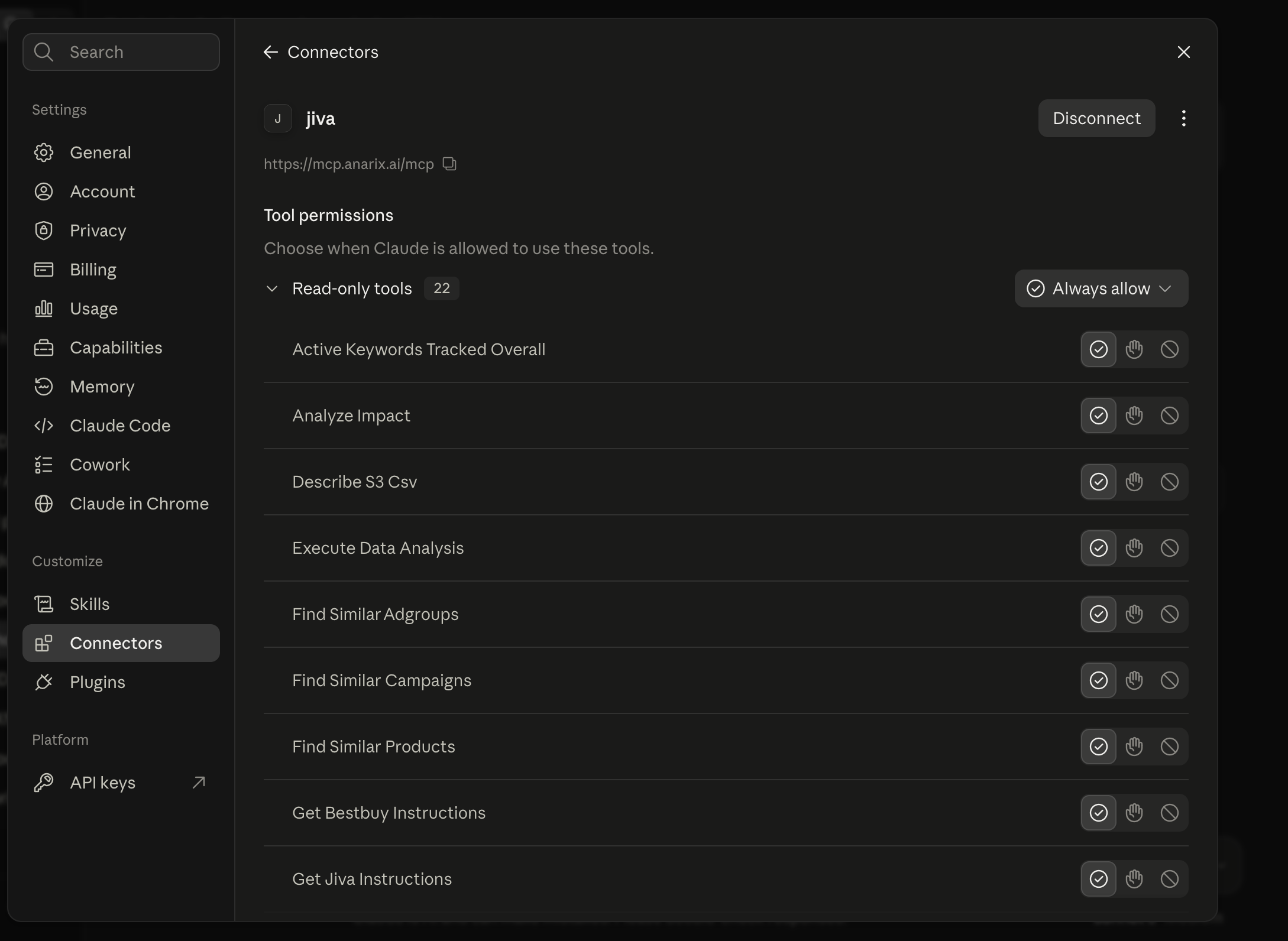
Standard configuration workflow for other team members
In Claude, go to Settings > Customize > Connectors.
Click Add, then select Add Custom Connector.
Enter the following details:
- Name: JIVA
- Remote MCP URL:
https://mcp.anarix.ai/mcp
Click Continue, then click Add to save the connector.
Click Connect — you'll be redirected to the Anarix login page. Sign in with your Anarix credentials.
Once redirected back to Claude, open a new chat and confirm that the JIVA tools are available.
Refresh the browser or app; ensure an admin has enabled custom connectors for the organization.
With setup complete, you can now verify that your MCP connection is working by running a few test queries.
Your First Test
Start with these prompts to confirm everything is working:
Step 1 — Check account access
Step 2 — Run a performance query
Step 3 — Request a visualization
You're fully set up. Anarix MCP is connected, and pulling live data from your Anarix account.
If you run into any issues during setup, use this guide to diagnose and resolve common problems.
Troubleshooting
If Anarix MCP does not appear or authenticate correctly, use the checks below before escalating to your Anarix admin.